Backup & Restore Settings
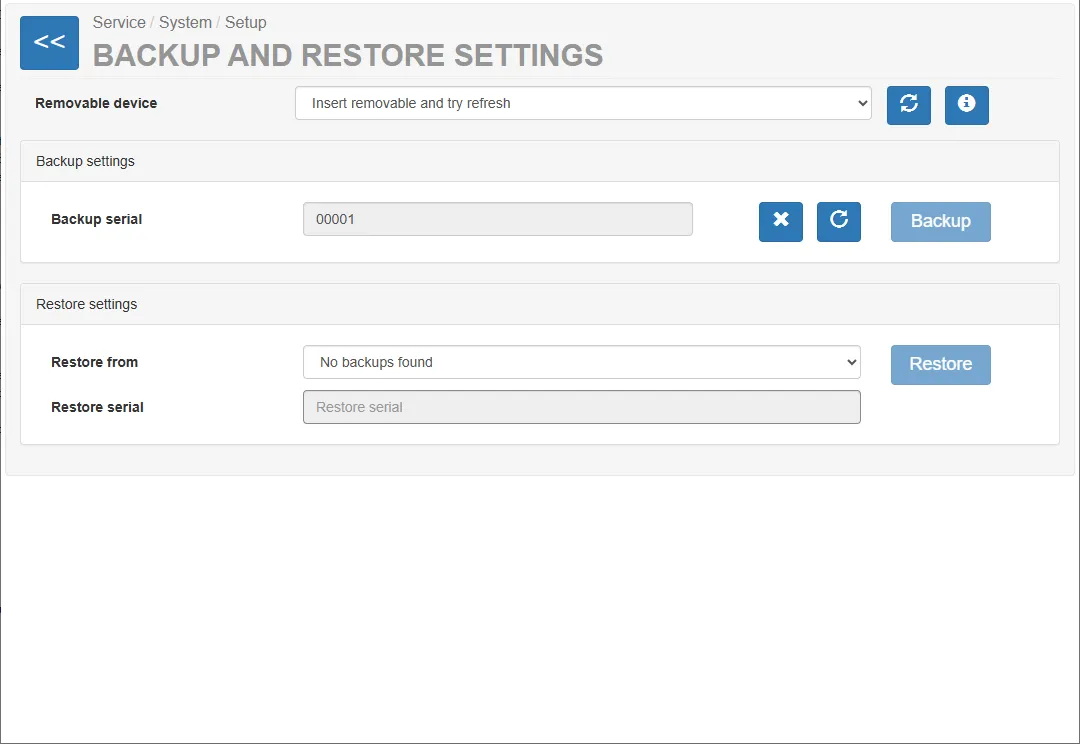
The Backup & Restore page allows service technicians to create a backup of the machine configuration and restore previously saved settings. Backups are stored on an external storage device.
This functionality is useful when:
- replacing hardware components
- deploying identical configurations to multiple machines
- restoring the system after maintenance or failure
- creating configuration archives before major changes
Removable Device Selection
Section titled “Removable Device Selection”The Removable Device dropdown allows selecting the external storage device used for backup and restore operations.
Before performing a backup or restore operation:
- Insert a storage device into the vending unit.
- Refresh the list of available devices if necessary.
- Select the correct device from the dropdown list.
The system will use the selected storage device for reading or writing backup files.
Backup Settings
Section titled “Backup Settings”The Backup Settings section is used to create a backup of the current system configuration.
Backup Serial Number
Section titled “Backup Serial Number”The field Backup Serial Number defines the serial number associated with the backup.
This number is used to identify the backup configuration and may correspond to the vending machine’s serial number.
Creating a Backup
Section titled “Creating a Backup”To create a backup:
- Ensure a storage device is connected and selected.
- Verify or enter the backup serial number.
- Press the Backup button.
The system will export the current machine configuration and store it on the external storage device.
Backups are stored in a dedicated folder on the selected device.
Restore Settings
Section titled “Restore Settings”The Restore Settings section allows restoring previously saved configurations.
Restore From Backup
Section titled “Restore From Backup”The field Restore From displays available backup files detected on the selected storage device.
If no backups are available, the system will show:
No backups found
Restore Serial Number
Section titled “Restore Serial Number”The field Restore Serial Number allows specifying the serial number that should be applied after the restore process.
Restoring a Backup
Section titled “Restoring a Backup”To restore a configuration:
- Connect the storage device containing the backup.
- Select the desired backup file from the list.
- Enter the serial number if required.
- Press the Restore button.
The vending unit will load the selected configuration and apply the restored settings.