System Events
The System Events page displays the event log of the machine.
It allows service technicians to review system activity, diagnose problems, and monitor important operational events.
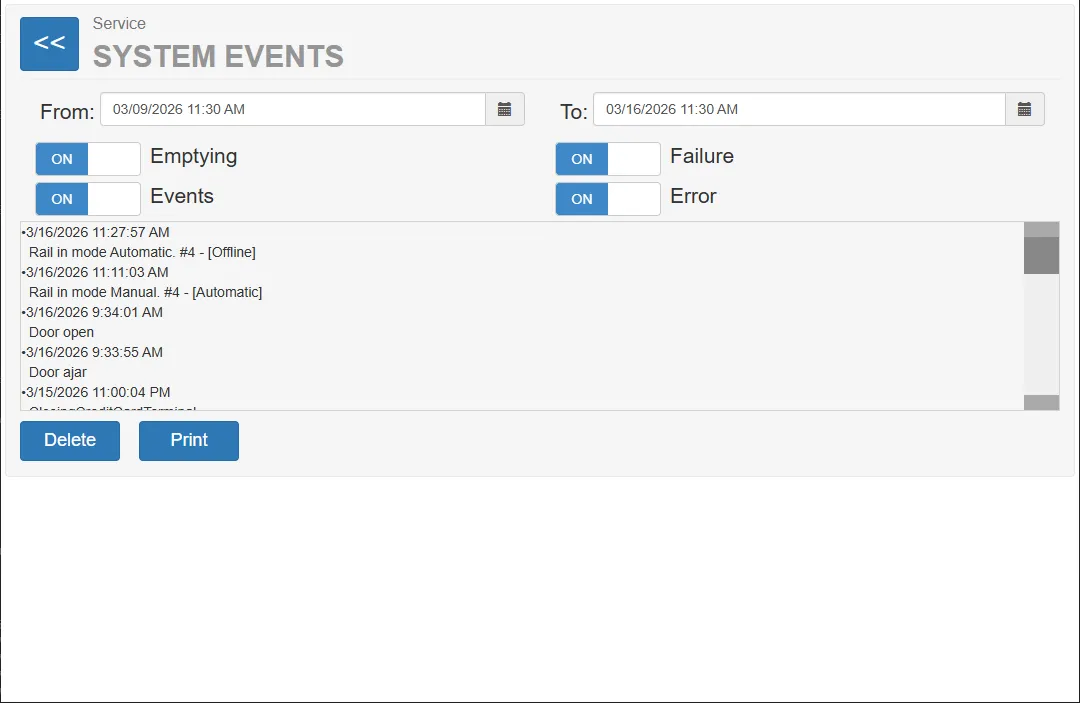
Each event entry includes:
- date and time of the event
- a short description of the event
Examples of recorded events include:
- door opening or closing
- system errors
- system failures
- service operations
Time Range Selection
Section titled “Time Range Selection”At the top of the page, the technician can select the time range for which events should be displayed.
| Field | Description |
|---|---|
| From | Start date and time of the event range |
| To | End date and time of the event range |
Only events within the selected time period are shown in the list.
Event Type Filters
Section titled “Event Type Filters”The page provides several filters that allow technicians to control which types of events are displayed.
Each filter can be turned ON or OFF.
| Filter | Description |
|---|---|
| Emptying | Shows events related to emptying or clearing operations |
| Events | Displays general system events |
| Failure | Shows system outages or interruptions |
| Error | Displays system errors |
This filtering system allows technicians to focus on specific types of events during diagnostics.
Event List
Section titled “Event List”The main section of the page displays the event log.
Each event entry includes:
- a timestamp
- a short description of the event
Example:
13.03.2026 12:02:46 Vending machine door opened
Example events shown in the interface:
- machine door opened
- machine door closed
- system state changes
- error notifications
Events are displayed in chronological order.
Delete Events
Section titled “Delete Events”The Delete button removes all events currently displayed in the list.
This function is typically used:
- after service operations
- to clear old logs
- to start a new logging period
Print Event Log
Section titled “Print Event Log”The Print button prints the current event log using the machine’s internal printer.
The printed report may be used for:
- maintenance documentation
- diagnostic reports
- service records