Idle Screen (Screensaver)
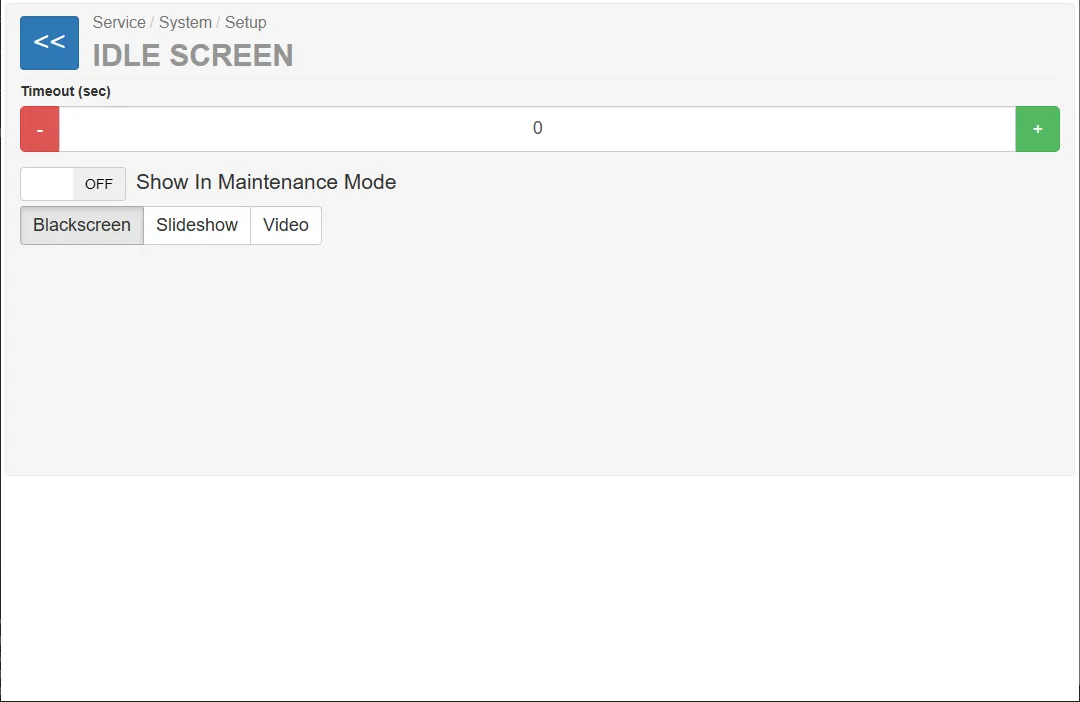
The Idle Screen settings allow configuring what is displayed on the screen when the vending machine is idle for a defined period of time.
This feature can be used to:
- reduce screen burn-in
- display promotional content
- show informational slides
- display video content
- keep the screen black when inactive
The screensaver activates after the configured timeout period when the machine is not being used.
Timeout (sec)
Section titled “Timeout (sec)”The Timeout (sec) parameter defines how long the machine must remain idle before the screensaver is activated.
The value can be adjusted using the ”+” and ”–” buttons.
Example:
Timeout (sec): 60
Special Case: Timeout = 0
Section titled “Special Case: Timeout = 0”If the timeout value is set to 0, the screensaver will never be displayed.
This disables the idle screen functionality entirely.
Show in Maintenance Mode
Section titled “Show in Maintenance Mode”When enabled, the screensaver will also be shown while the machine is in maintenance mode.
If disabled, the screensaver will not appear while the service menu is active.
Screensaver Display Modes
Section titled “Screensaver Display Modes”Three different screensaver display modes are available:
| Mode | Description |
|---|---|
| Blackscreen | Displays a completely black screen |
| Slideshow | Displays images in sequence |
| Video | Plays a video file |
Blackscreen Mode
Section titled “Blackscreen Mode”In Blackscreen mode, the display becomes completely black when the screensaver activates.
No additional configuration is required for this mode.
Slideshow Mode
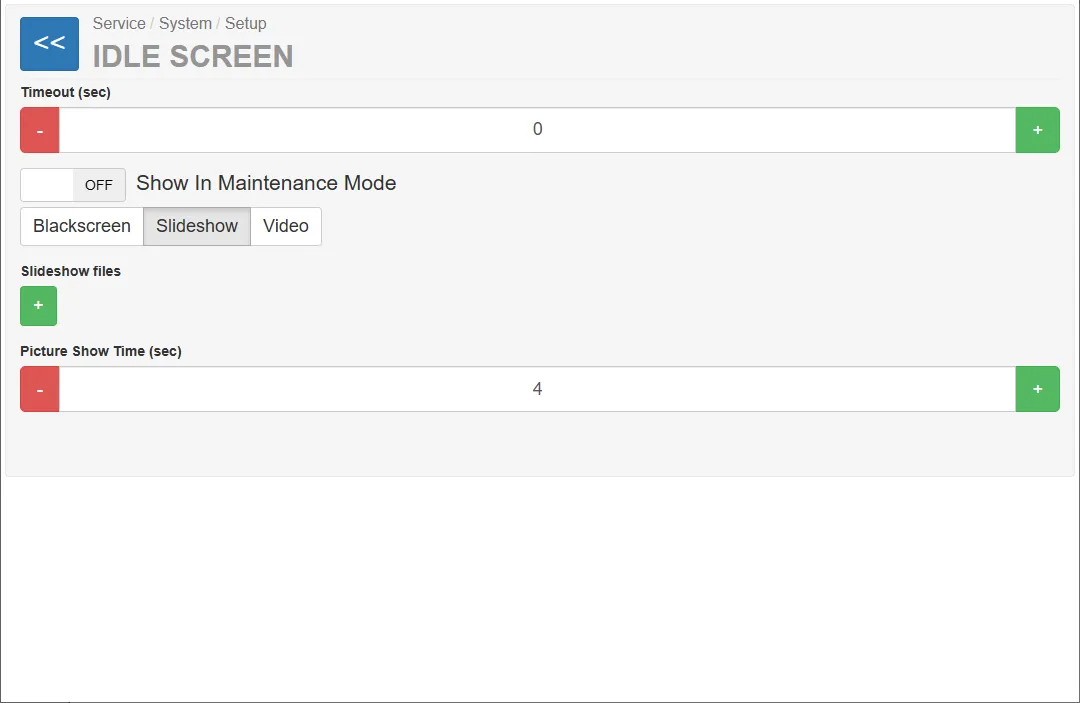
Section titled “Slideshow Mode”The Slideshow mode displays a sequence of images.
Slideshow Files
Section titled “Slideshow Files”Images used for the slideshow can be added using the ”+” button in the Slideshow files section.
Uploaded images will be displayed sequentially while the machine is idle.
Picture Show Time (sec)
Section titled “Picture Show Time (sec)”The parameter:
Picture Show Time (sec)
defines how long each image will remain visible before the next image is displayed.
Example:
Picture Show Time (sec): 4
This means each image is displayed for 4 seconds before switching to the next one.
Video Mode
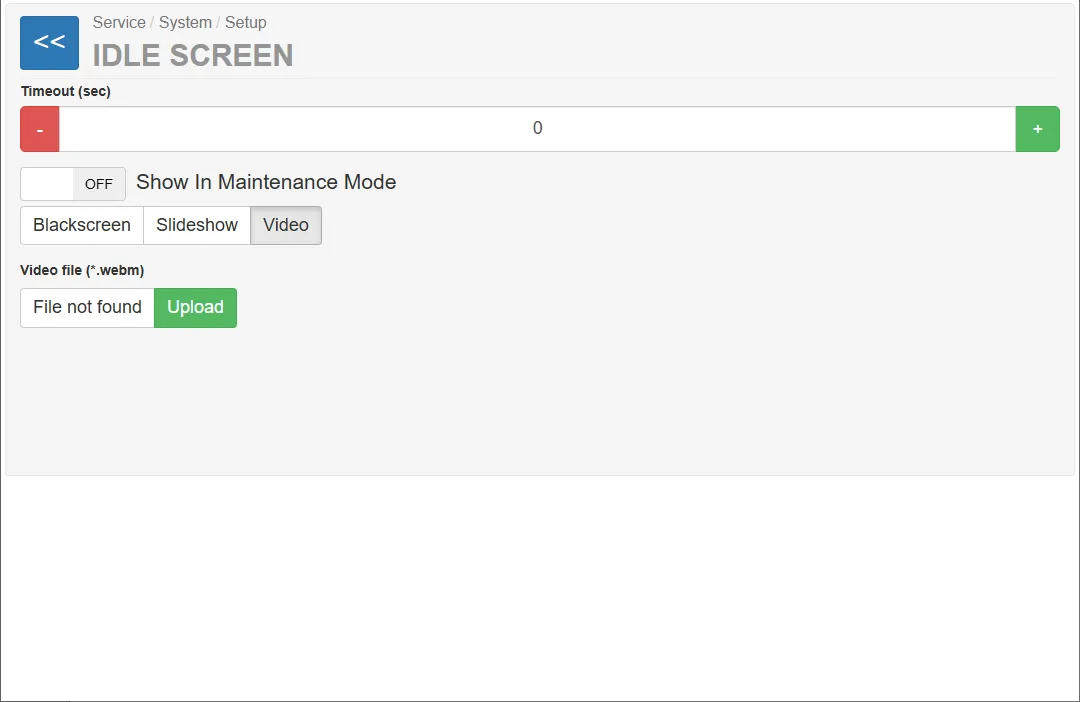
Section titled “Video Mode”In Video mode, a video file is played when the screensaver activates.
Video File
Section titled “Video File”Supported format:
*.webm
The video file can be uploaded using the Upload button.
If no video file is available, the system will display:
File not found
Once uploaded, the video will automatically play during idle periods.